
A sign-in screen that keeps reappearing can look like an incorrect password even when the form has yet to accept any input. Before resetting anything, observe where the reload occurs and what the address bar shows. This guide applies when you reach a mobile sign-in page from a saved bookmark, an app or a guide that mentions a service such as Mega888. The checks concern the browser and the page in front of you. Each can be performed with the form empty.
Start with the destination and the first visible event
Open the address bar and read the full site name. Record the domain when the page first opens and when it reloads. On a small display the browser may show a shortened address until you tap it. A familiar word in the path after the domain is easy to mistake for part of the address. Copy only the domain when reporting the issue, because a full link may contain a sign-in or reset token.
Look for an error message, a browser warning or a move to a different site. If an unexpected domain is involved, close that tab and check the address through a source you already trust. Stop at a browser warning or access restriction and refer the issue to a verified support channel. A screenshot of the page before the reload, with personal details omitted, is often more useful than a replay of the login attempt.
Compare the same page in the phone's browser
A link from a messaging app or social feed may open in an embedded browser. If the address matches the site you intended to visit, open that public page directly in your usual mobile browser. Keep the device, network and address the same so there is one major difference to observe. Let the form load without entering any details. Note whether it stays on screen long enough to read.
If the form is stable in your regular browser and flickers only inside the messaging app, report the two outcomes separately. If both reload before input, also record whether you saw a notice about cookies or maintenance. These observations help support narrow the problem to a browser context, a page error or a server message. Identical behaviour on two views still leaves the underlying cause open.
Review site data only when the evidence points there
Websites can store small pieces of data, including cookies, to remember preferences or maintain a session. A failed session can coincide with a reload. It can also occur when a site expects data the browser restricts. Read the browser's site controls and any message on the page before changing a setting. Note what is currently selected and leave broad privacy controls in place.
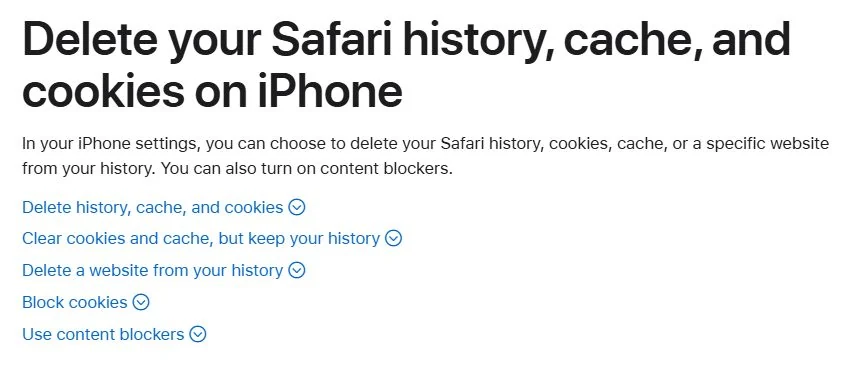
If you decide to clear stored data, use the narrowest option your browser offers and expect to lose that site's session and perhaps its preferences. Google's Chrome instructions describe removing stored data for a single site on Android. Apple's Safari instructions explain what each clearing option removes on iPhone. Check the scope before tapping a confirmation, particularly on a shared phone or a browser that's signed in to other services. Google Chrome cookie controls · Apple Safari website data settings
Make the support report useful
For example, a useful note would say, “The public form reloads twice as soon as it appears in the chat browser. It stays open in Safari on the same connection. No input was submitted.” Include the time, phone model, browser, start domain and final domain if it changes. Add the exact error text when available. Keep passwords, one-time codes and account screenshots private. That record gives support something to reproduce while leaving the account untouched.
Related reading · AB33 Mobile Access Guide